The Problem
At Silicon Forensics, part of the production process involves preparing hard drives for clients before shipment. Each client has different requirements for how drives need to be configured, labeled, and verified. For smaller batches, this is manageable by hand — but one of our larger clients regularly places orders for hundreds of drives at a time.
Quality control took far too long. Verifying every drive manually could take hours, and for larger batches it could take an entire day. The process was repetitive and left room for human error. For each drive, someone had to manually check:
- The drive name matched the required naming convention
- The drive had the correct amount of used space
- The file system was correct
- The serial number matched production records
- The drive size matched the order
- The destination site was correct
- QC initials and timestamp were recorded after validation
I built a custom drive QC automation tool to solve this. It went through two major versions as real-world usage exposed limitations in the first design.
Version 1: Automating the First Layer
The first version focused on automating the most repetitive checks. It continuously scanned connected drives and validated them against expected conditions.
Drive Name Validation
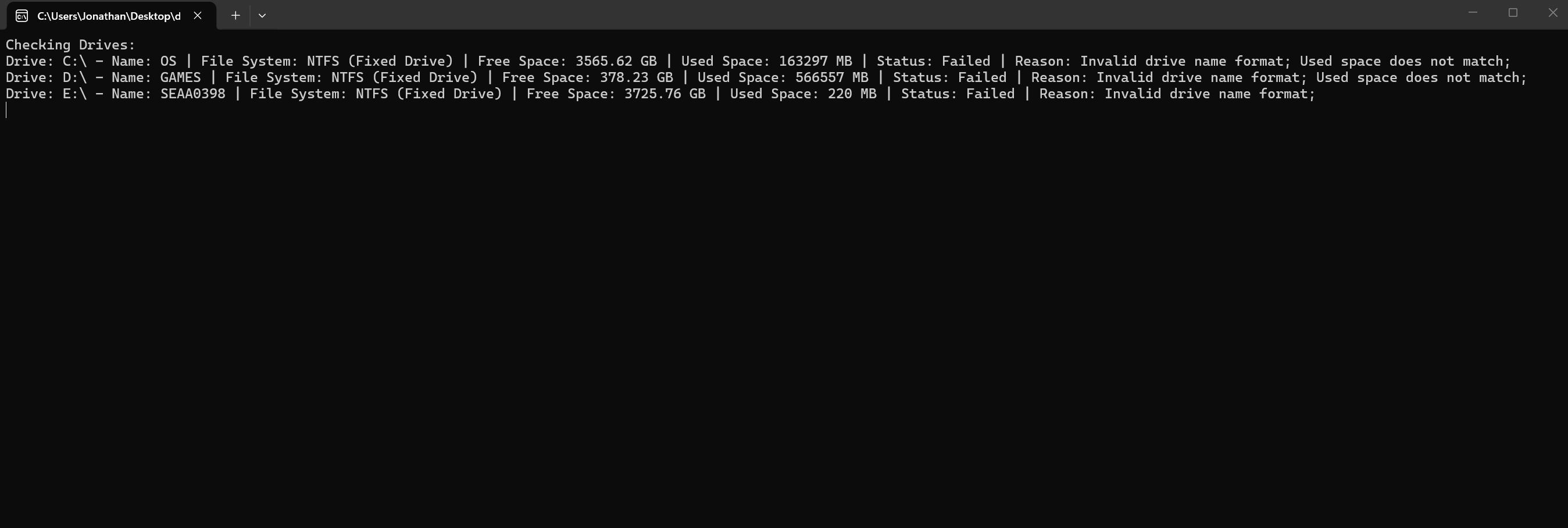
Each drive was expected to follow a naming convention like ABC1234 — where ABC is a three-letter site code and 1234 is a four-digit drive number. The program validated that the name was exactly 7 characters, started with 3 letters, and ended with 4 digits.
bool isValidDriveName(const std::string& driveName) {
    if (driveName.length() != 7) return false;

    for (int i = 0; i < 3; ++i) {
        if (!std::isalpha(driveName[i])) return false;
    }
    for (int i = 3; i < 7; ++i) {
        if (!std::isdigit(driveName[i])) return false;
    }
    return true;
}
File System & Used Space Validation
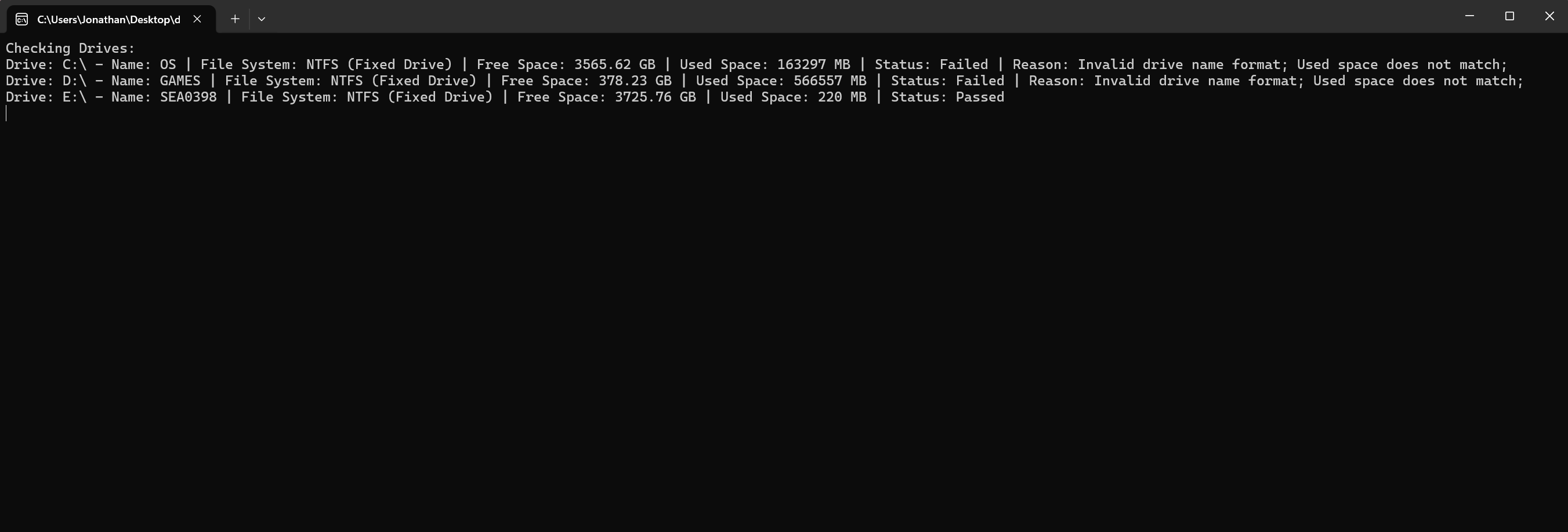
Using Windows API calls (GetVolumeInformationA and GetDiskFreeSpaceExA), the tool retrieved each drive’s file system type and calculated used space, then compared against the expected values.
Continuous Refresh
Instead of running once and exiting, the application refreshed every two seconds. Drives could be plugged in one after another and checked in real time — no need to manually open properties for every drive.
Limitations of Version 1
Even though Version 1 saved a lot of time, it had important weaknesses:
- It only validated the format of the drive name, not whether the drive actually belonged to the correct production record
- Several important checks were still manual: confirming the physical serial number, confirming the drive size matched the order, and recording QC initials
- The naming logic assumed the numeric portion would always be four digits. When one site exceeded 9999 drives, valid drives started failing because they no longer matched the original naming rule
That pushed me to redesign the tool so it could validate against real production data instead of relying on fixed naming patterns.
Version 2: Integrating Production Data
Version 2 was a much bigger improvement because it tied the QC process directly to the spreadsheet that production was already using. Instead of checking only whether a drive looked correct, the tool now checked whether it matched the actual production record.
Setup Flow
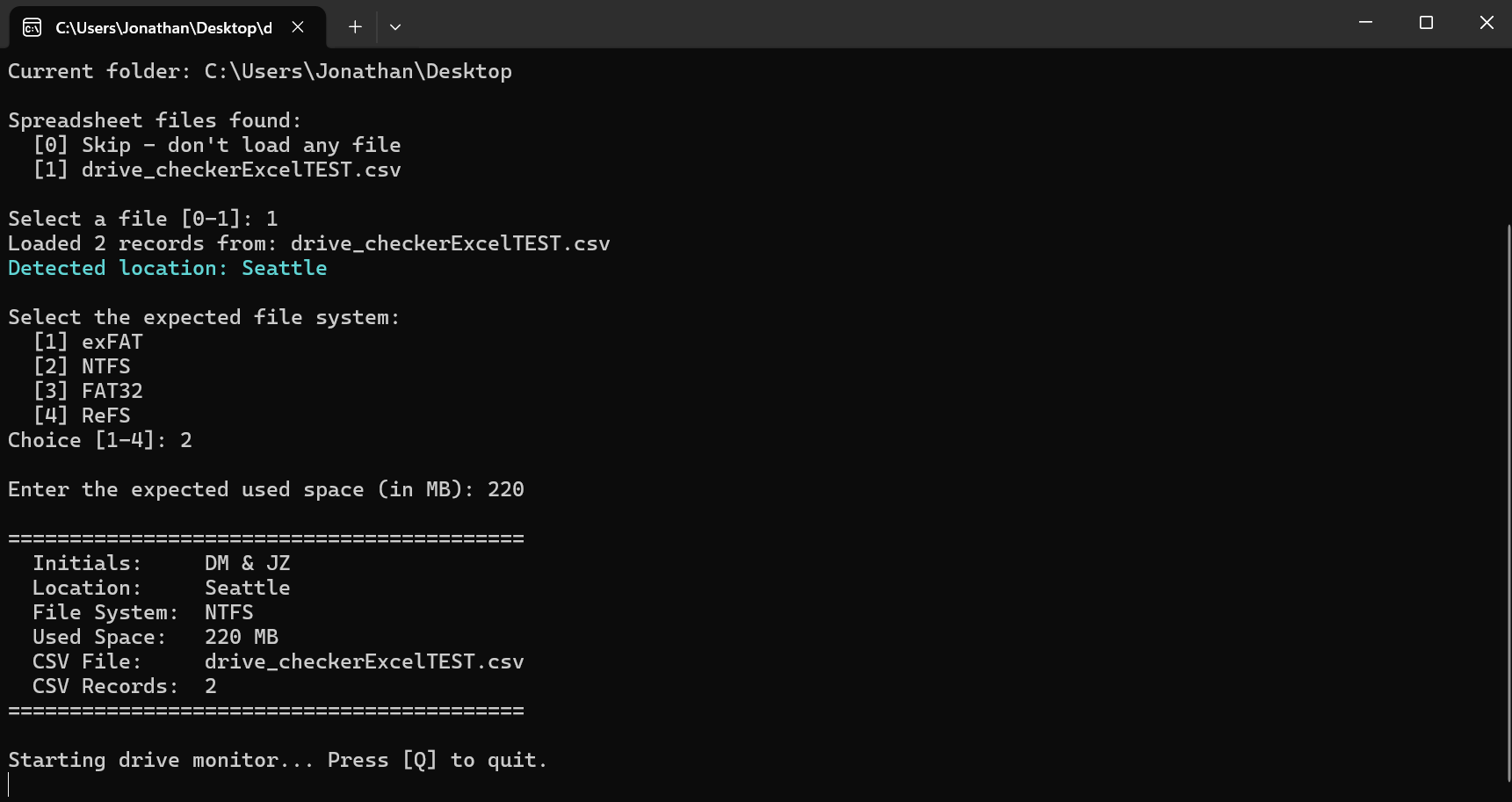
When the program starts, it walks the operator through configuration:
- Operator initials — Two sets for dual-sign-off (e.g., “DM & JZ”), stamped into the CSV on pass
- CSV file selection — Auto-discovers spreadsheet files in the current directory
- Location auto-detection — Reads the most common location from existing CSV records (e.g., “Seattle”)
- File system selection — exFAT, NTFS, FAT32, or ReFS
- Expected used space — In MB, for freshly imaged drives
The configuration summary confirms everything before entering the monitoring loop.
Reading Physical Serial Numbers
The most important upgrade in Version 2 was reading the physical serial number directly from the drive hardware using Windows IOCTL:
STORAGE_PROPERTY_QUERY query;
query.PropertyId = StorageDeviceProperty;
query.QueryType = PropertyStandardQuery;

BOOL result = DeviceIoControl(
    hDevice, IOCTL_STORAGE_QUERY_PROPERTY,
    &query, sizeof(query),
    buffer, sizeof(buffer),
    &bytesReturned, NULL);

STORAGE_DEVICE_DESCRIPTOR* desc = (STORAGE_DEVICE_DESCRIPTOR*)buffer;
std::string serial = (const char*)(buffer + desc->SerialNumberOffset);
This reads the manufacturer-assigned serial number — the same number printed on the physical drive label — not the OS-level volume serial. The tool then searches the production spreadsheet for a matching record.
Matching Against Production Records
In Version 1, I only asked “does this look valid?” In Version 2, the tool asks “does this match the exact record production created for this drive?” It compares:
- Serial number against the spreadsheet’s S/N column
- Volume name against the expected PC name from the matched record
- Drive capacity against the HARDRIVE column (e.g., “SEAGATE 1TB USB” or “Crucial 8TB SSD”)
The size parser handles the marketing-vs-real GB conversion with tolerance bounds:
// Marketing to real: multiply by (1000/1024)^3
double expectedRealGB = expectedMarketingGB * 0.931323;

// 15% lower tolerance (formatting), 5% upper tolerance
double lowerBound = expectedRealGB * 0.85;
double upperBound = expectedRealGB * 1.05;
QC Logging and Timestamping
Once a drive passes all checks, the tool automatically:
- Attaches QC initials from both operators
- Generates a timestamp
- Updates the location field
- Saves the record back to the CSV
This eliminated manual note-taking and made the QC trail consistent and auditable.
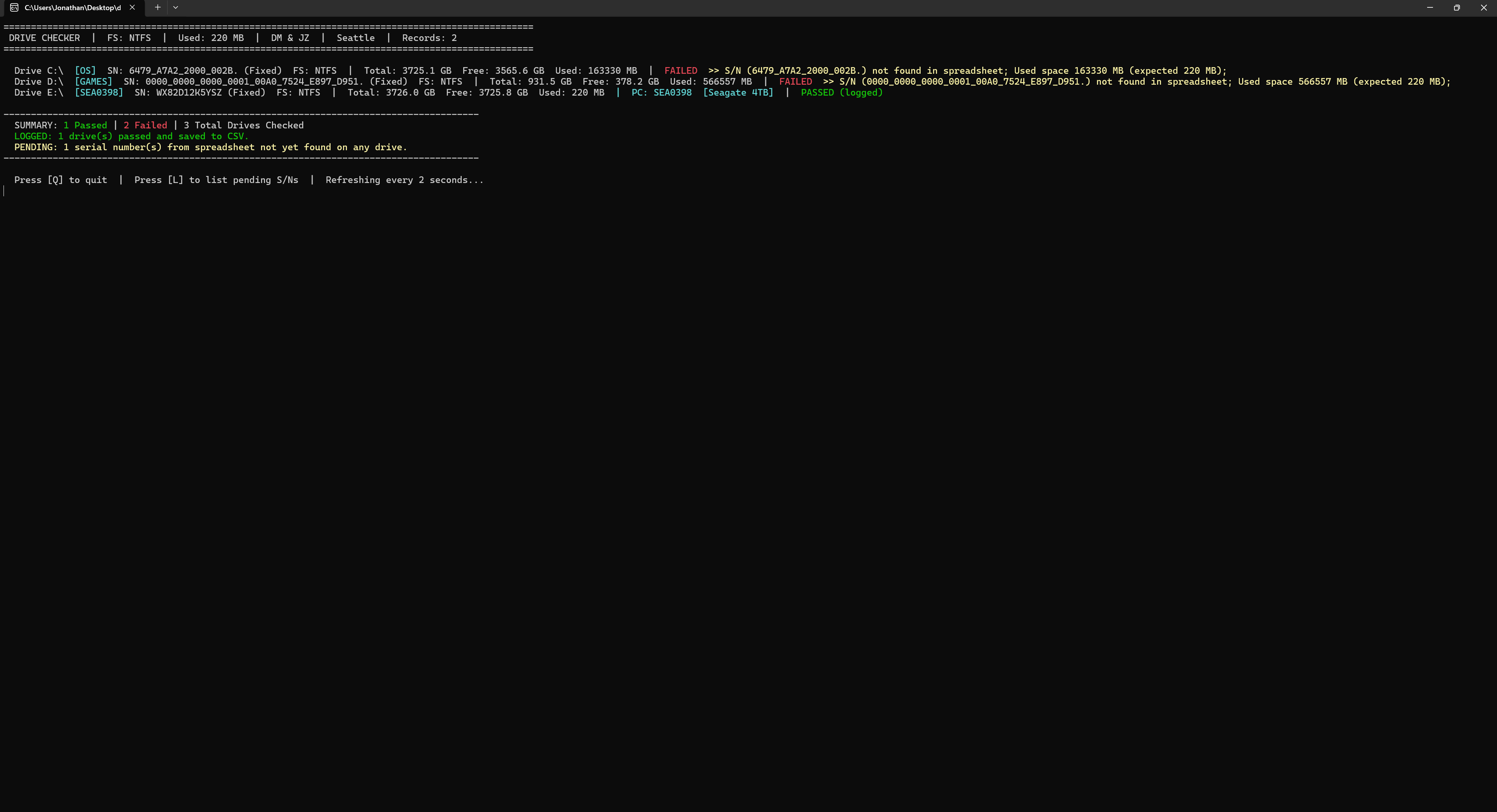
Real-Time Dashboard
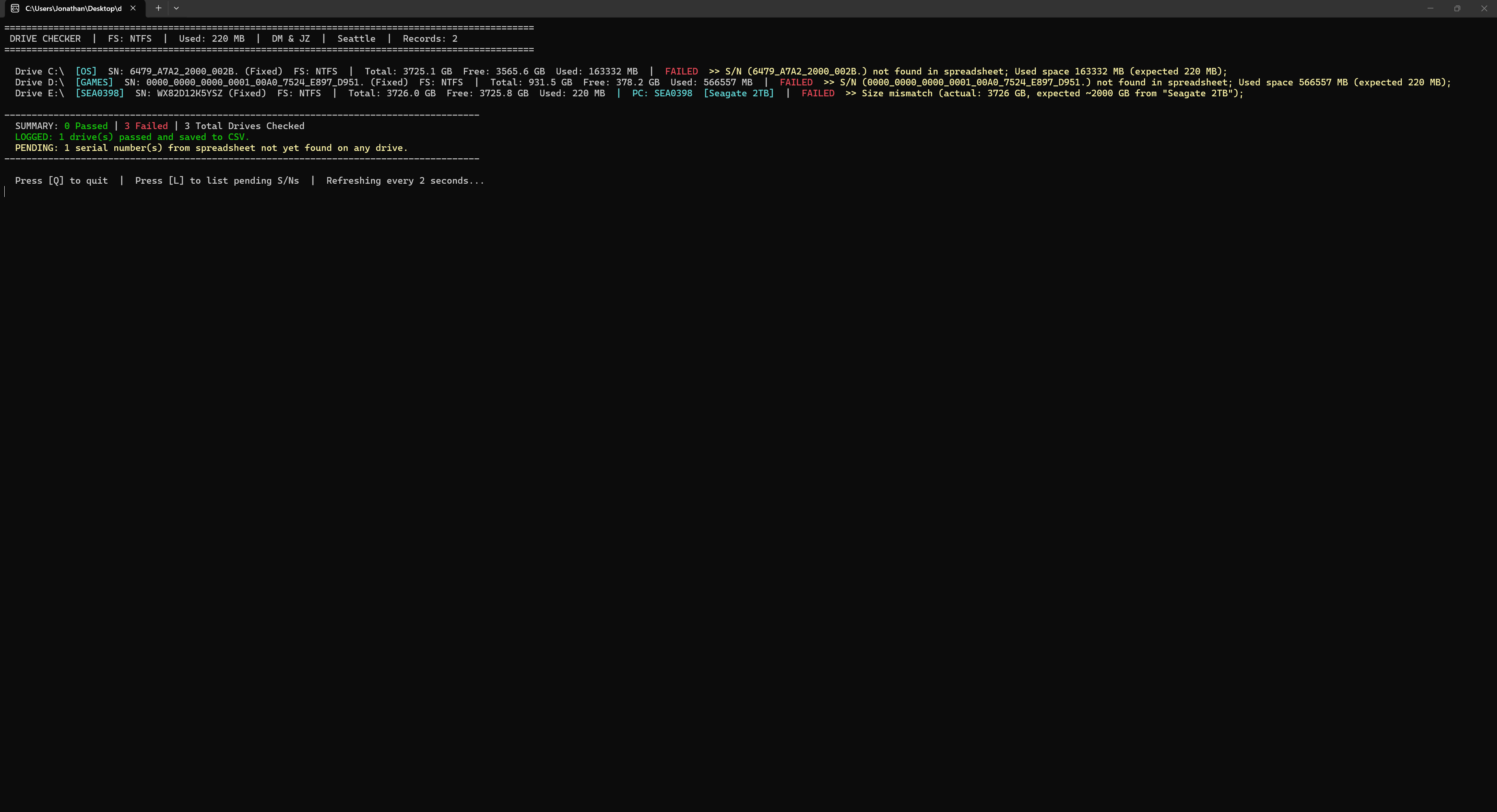
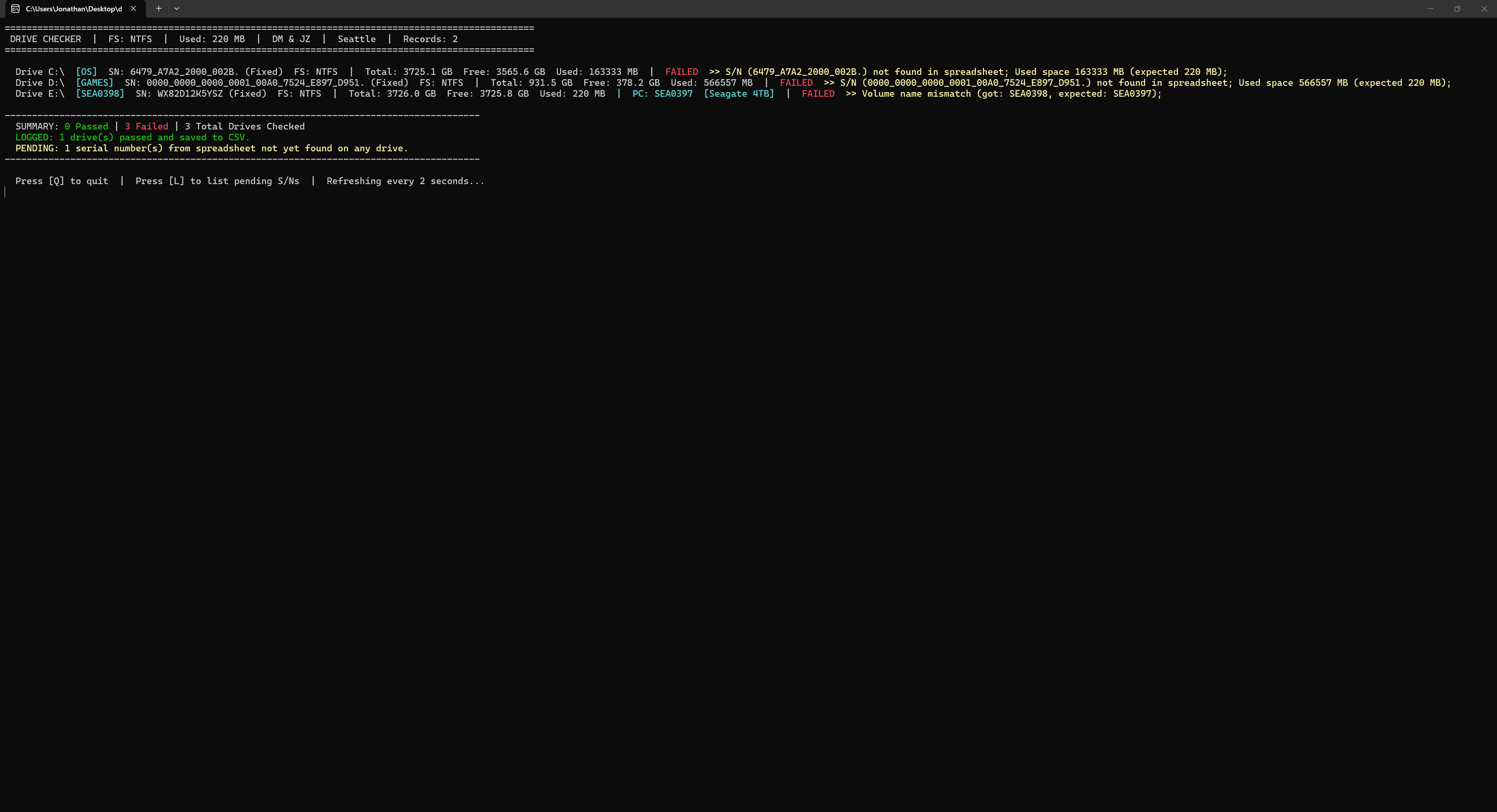
The monitoring loop refreshes every 2 seconds and provides a complete summary:
- Green — Drive passed all checks, logged to CSV
- Red — Drive failed with specific reasons in yellow (S/N not found, size mismatch, used space wrong, etc.)
- Cyan — Matched production data (PC name, drive type)
- Summary bar — Total passed, failed, and checked counts
- Pending tracker — How many serial numbers from the spreadsheet haven’t been seen yet
- [L] key — Lists all pending serial numbers that still need to pass
Architecture
The tool is a single-file C++ application (820 lines in v2) organized into clean modules:
Data Flow
CSV Manifest
    |
    v
Load Records -> [Every 2 sec] -> Enumerate Drives
                                       |
                                  Query IOCTL S/N
                                       |
                                  Match Against CSV
                                       |
                              Validate (FS, Size, Space, Name)
                                       |
                           PASS -> Stamp CSV + Log
                           FAIL -> Show Reasons
Key Modules
- CSV Parser — Handles quoted fields, escaping, read/write with header preservation, hot-reload every cycle
- Drive Query — Windows API calls for serial numbers (
DeviceIoControl), volume info (GetVolumeInformationA), and disk space (GetDiskFreeSpaceExA) - Size Parser — Regex-free extraction of TB/GB values from freeform drive description strings like “SEAGATE 1TB USB”
- Matching Engine — Cross-references physical serial numbers against manifest records with case-insensitive comparison
- Console UI — Color-coded output via
SetConsoleTextAttributewith real-time refresh, summary stats, and pending list - Main Loop — 2-second polling with CSV hot-reload, keyboard input (Q to quit, L to list pending), and persistent pass state across reloads
Evolution: V1 to V2
| Feature | Version 1 | Version 2 |
|---|---|---|
| Name validation | Pattern only (ABC1234) | Matched against spreadsheet PC name |
| Serial number | Not checked | Read from hardware via IOCTL |
| Drive size | Not checked | Parsed from spreadsheet, tolerance-adjusted |
| Production data | None | CSV manifest integration |
| QC logging | Manual | Auto-stamped with initials + timestamp |
| Location | Not tracked | Auto-detected from CSV |
| Pending tracking | None | Lists unmatched serial numbers |
| Color coding | None | Green/red/yellow/cyan console colors |
Impact
What used to take hours of repetitive manual checking became a much faster and more reliable process. Instead of manually comparing drives to spreadsheet entries one by one, the operator loads the production file, connects drives, and lets the application validate them in real time.
- 35% reduction in manual test errors — Automated checks catch mismatches humans miss
- 20% faster test cycles — No more manual serial number lookup and cross-referencing
- Dual operator sign-off — Built-in accountability with initials and timestamps
- Improved traceability — Automatic QC logging makes the process auditable
- Zero training curve — Menu-driven setup, color-coded results, plug-and-check workflow
Most importantly, this project showed me how software can directly improve day-to-day operations in a production environment. It was not just a programming exercise — it solved a real problem at work.
Tech Stack
- Language: C++ (compiled with MSVC)
- APIs: Windows IOCTL (
DeviceIoControl,STORAGE_PROPERTY_QUERY),GetLogicalDrives,GetVolumeInformation,GetDiskFreeSpaceEx - I/O: Custom CSV parser with quoted field support and hot-reload
- UI: Windows console with color attributes via
SetConsoleTextAttribute