Objective
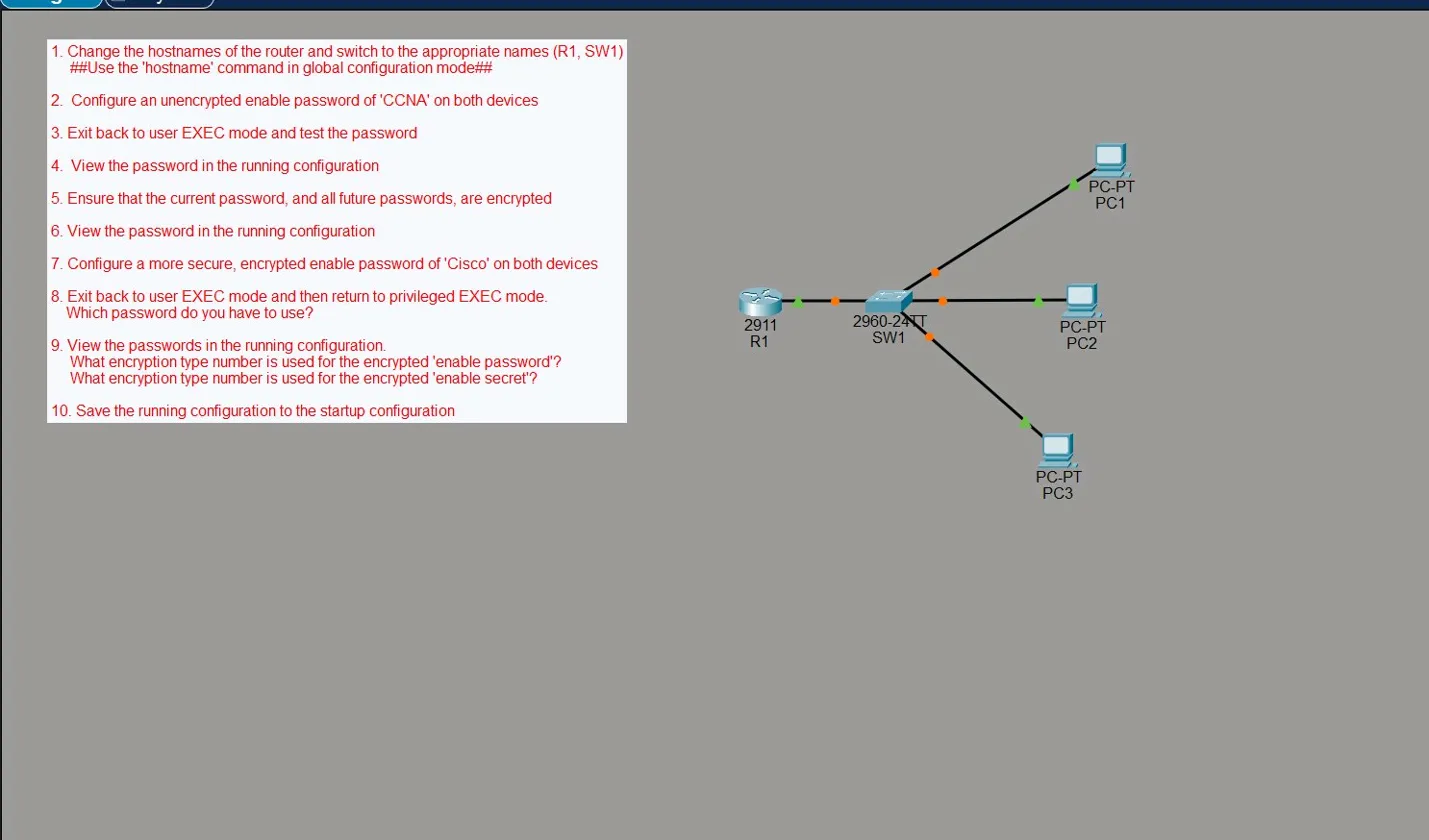
Get comfortable with the Cisco IOS CLI by configuring a router and switch from scratch. The focus is on hostnames and password security — specifically understanding the difference between a plaintext enable password, a weakly encrypted one, and a properly hashed enable secret.
The topology is simple: one 2911 router (R1), one 2960 switch (SW1), and three PCs hanging off the switch.
Both devices got the same treatment, but since the process is identical on the switch, everything below covers the router only.
Step 1 — Set the Hostname
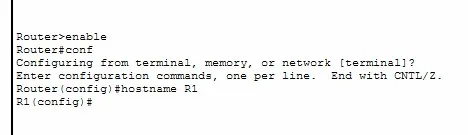
From privileged EXEC mode, drop into global configuration mode and set the hostname:
Router> enable
Router# conf t
Router(config)# hostname R1
R1(config)#
The prompt immediately changes from Router to R1 — confirmation the hostname is set.
Step 2 — Set an Enable Password
Still in global config, set an unencrypted enable password:
R1(config)# enable password ccna

Step 3 — Test the Password
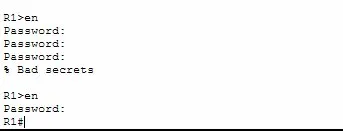
Exit back to user EXEC and try to get back into privileged EXEC:
R1> en
Password:
Password:
Password:
% Bad secrets

R1> en
Password:
R1#
The first three attempts fail — wrong password entered. The fourth works. The % Bad secrets message is Cisco IOS telling you the password was incorrect.
Step 4 — View the Running Configuration
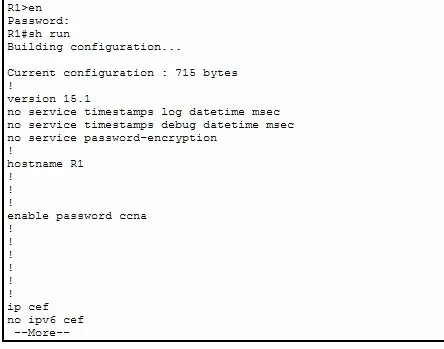
R1# sh run
The problem is immediately visible:
enable password ccna
The password is sitting there in plaintext. Anyone who can view the running config — or get their hands on a config backup — can just read it.
Step 5 & 6 — Encrypt with service password-encryption
To address the plaintext issue, enable the global password encryption service:
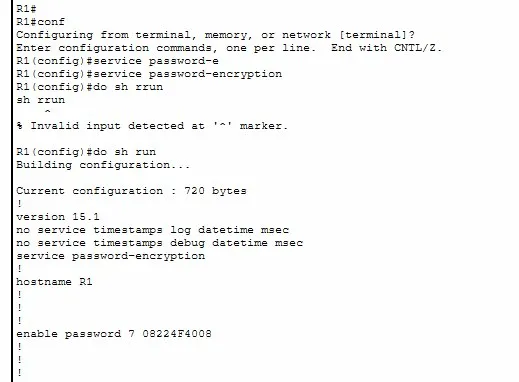
R1(config)# service password-encryption
Running show run again now shows:
enable password 7 08224F4008
The 7 is the encryption type. It’s no longer plaintext — but type 7 is Cisco’s proprietary Vigenère cipher and it’s trivially crackable. Paste that hash into any online type 7 decoder and the original password comes straight back. It’s obfuscation, not real security.
Step 7 — Enable Secret (the right way)
The fix is enable secret, which uses MD5 (type 5) instead of the reversible type 7 cipher:
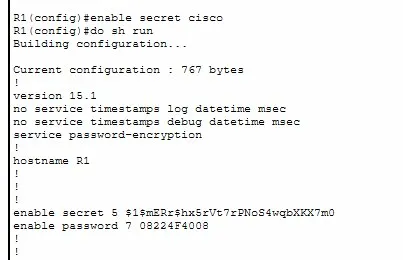
R1(config)# enable secret cisco
Running show run now shows both entries:
enable secret 5 $1$mERr$hx5rVt7rPNoS4wqbXKX7m0
enable password 7 08224F4008
The difference is obvious — the type 5 hash is a proper one-way hash. You can’t reverse it.
Step 8 — Test Which Password Takes Priority
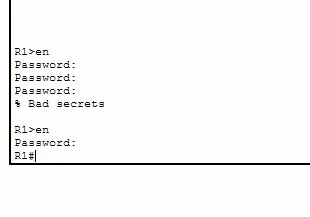
Both are configured. Back at user EXEC:
R1> en
Password:
Password:
Password:
% Bad secrets

R1> en
Password:
R1#
Entering ccna (the enable password) fails three times. Entering cisco (the enable secret) works immediately. Enable secret always wins — when both are configured, IOS ignores the enable password entirely.
Step 9 — View Both Passwords in show run
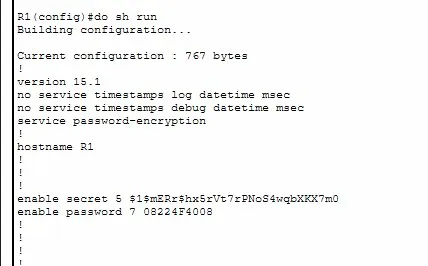
R1(config)# do sh run
enable secret 5 $1$mERr$hx5rVt7rPNoS4wqbXKX7m0
enable password 7 08224F4008
The contrast is clear:
- Type 7 (enable password) — a short reversible cipher. Crackable in seconds online.
- Type 5 (enable secret) — an MD5 hash. Not reversible; requires brute force.
In practice, once you set an enable secret you can remove the enable password entirely. There’s no reason to keep both.
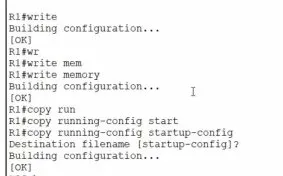
Step 10 — Save the Configuration
Running config lives in RAM — it’s gone on reboot unless saved to NVRAM:
R1# write memory
Building configuration...
[OK]
The [OK] confirms it’s saved. The config is now persistent across reboots.
Key Takeaways
enable passwordstores credentials in plaintext by default — always visible inshow runservice password-encryptionapplies type 7 to all plaintext passwords — better than nothing, but easily cracked and not real securityenable secretuses MD5 (type 5) — this is the correct way to protect privileged EXEC access- When both are configured, enable secret always takes priority — the enable password is completely ignored
- Always save with
write memoryorcopy running-config startup-config— running config is RAM only and lost on reboot